How to Pay with QRIS Using Mobile Banking: Easy and Convenient
These days, paying for meals, shopping, and other everyday necessities no longer requires cash. Simply scan the QRIS code displayed by a merchant, and you can make a payment directly through your mobile banking app. QRIS stands for Quick Response Code Indonesian Standard, developed by Bank Indonesia and the Indonesian Payment System Association (ASPI).
If you’re using QRIS for the first time, paying with QRIS through mobile banking is actually quite simple. All you need to do is open your mobile banking app, select the QRIS feature, scan the QR code, and confirm the payment.
Want to know the complete steps? Let’s take a look at the guide below!
How to Pay with QRIS Using Mobile Banking
Every mobile banking app has a different interface and menu layout. Some provide direct access to QRIS from the home screen, while others place it under the payments menu.
Nevertheless, the general process for paying with QRIS through mobile banking is almost the same. Here are the steps:
1. Open Your Mobile Banking App
Open the mobile banking app you normally use and make sure you’re logged in to your account.
Before making a payment, ensure that your internet connection is stable to prevent disruptions during the transaction.
2. Select the QRIS or Scan QR Feature
Look for the QRIS payment feature in the app. The menu name may vary, with options such as QRIS, QR Pay, Scan QR, or something similar.
If the QRIS feature is available on the home screen, you can usually select it directly.
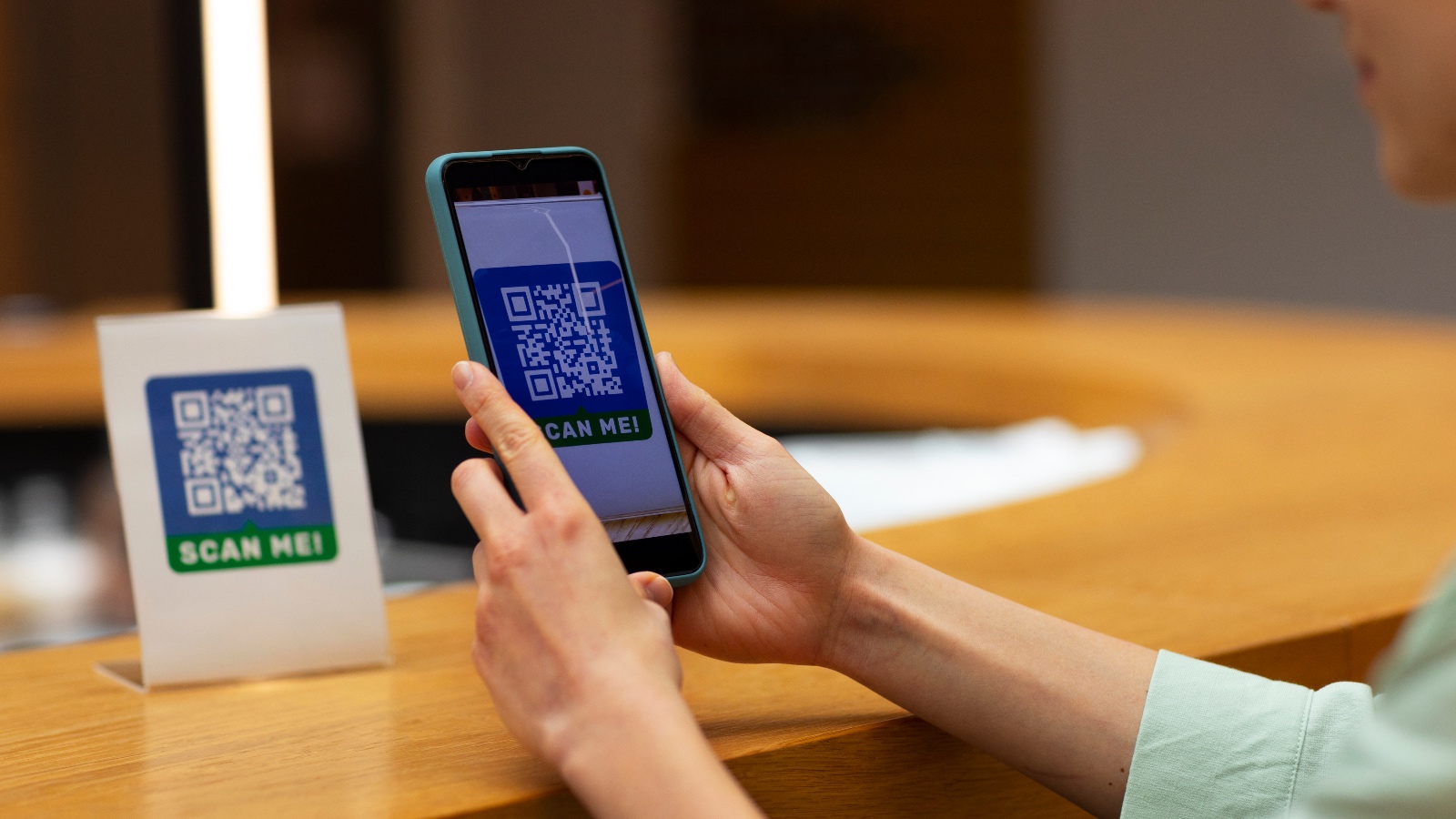
3. Scan the Merchant’s QRIS Code
Once the QRIS feature is open, point your smartphone camera at the QRIS code displayed by the merchant.
Make sure the QR code is clearly visible within the scanning area so the app can read it properly.
4. Check the Merchant’s Name
After the QR code has been scanned successfully, the app will display the transaction details.
Remember, don’t enter your PIN just yet. First, check the merchant’s name displayed in the app. Make sure it matches the business where you’re making the payment.
5. Enter the Payment Amount
If the payment amount is not filled in automatically, enter the amount you need to pay.
Make sure the amount matches your total purchase or bill.
6. Review the Transaction Details
Before proceeding with the payment, double-check the transaction information, especially:
- Merchant name
- Payment amount
- Funding source or account used, if displayed
If all the information is correct, you can proceed with the transaction.
7. Confirm the Payment and Enter Your PIN
After verifying that the payment details are correct, confirm the transaction.
Enter your mobile banking PIN as instructed by the app. Never share your PIN with anyone, including anyone claiming to be a bank representative or merchant.
8. Make Sure the Payment Is Successful
Wait until a notification or status message confirms that the payment was successful.
The app will usually display a transaction receipt once the payment is complete. Keep the receipt in case you need it later.
Tip: Don’t immediately make another payment if the process seems to be taking a long time. Check the transaction status in your mobile banking app first.
Tips for Paying with QRIS Safely Through Mobile Banking
In addition to knowing how to pay with QRIS, it’s important to ensure that your transactions are secure. Here are some things to keep in mind:
- Verify that the merchant’s name matches before entering your PIN.
- Check the payment amount to avoid mistakes.
- Never share your PIN, OTP, or security codes with anyone.
- Make sure the QRIS code you’re scanning belongs to the intended merchant.
- Avoid making payments through QRIS codes from unverified sources.
- Keep your transaction receipt after the payment is successful.
By checking the transaction details before entering your PIN, you can reduce the risk of errors when making payments.
What Should You Do If a QRIS Payment Fails?
In certain situations, a QRIS payment may not go through immediately. This could happen because of an unstable internet connection, an app malfunction, or a delay in receiving the transaction response.
If this happens, don’t immediately attempt the payment again.
First, check the transaction status in your mobile banking app. If the transaction is marked as successful, save the payment receipt and show it to the merchant if necessary.
If the funds have been deducted from your account but the transaction status remains unclear, wait a few moments and check the status again. If the problem persists, contact your bank or payment service provider for assistance.
By checking the transaction status first, you can avoid the risk of duplicate payments.
Accept QRIS Payments with Paylabs
Own a business and want to accept QRIS payments from your customers? Paylabs provides digital payment solutions that help businesses accept transactions from various mobile banking apps and e-wallets that support QRIS.
Paylabs also offers 24/7 Paylabs Care, a Real-Time Monitoring Dashboard, API integration starting from 30 minutes, and security standards certified under ISO/IEC 27001 and PCI DSS.
Ready to start accepting QRIS payments for your business?
👉 Register as a Paylabs Merchant
For more information, you can also contact Paylabs Marketing via WhatsApp.